Forex Trading Software
The Ultimate Trading Platform Designed for the Visual Investor
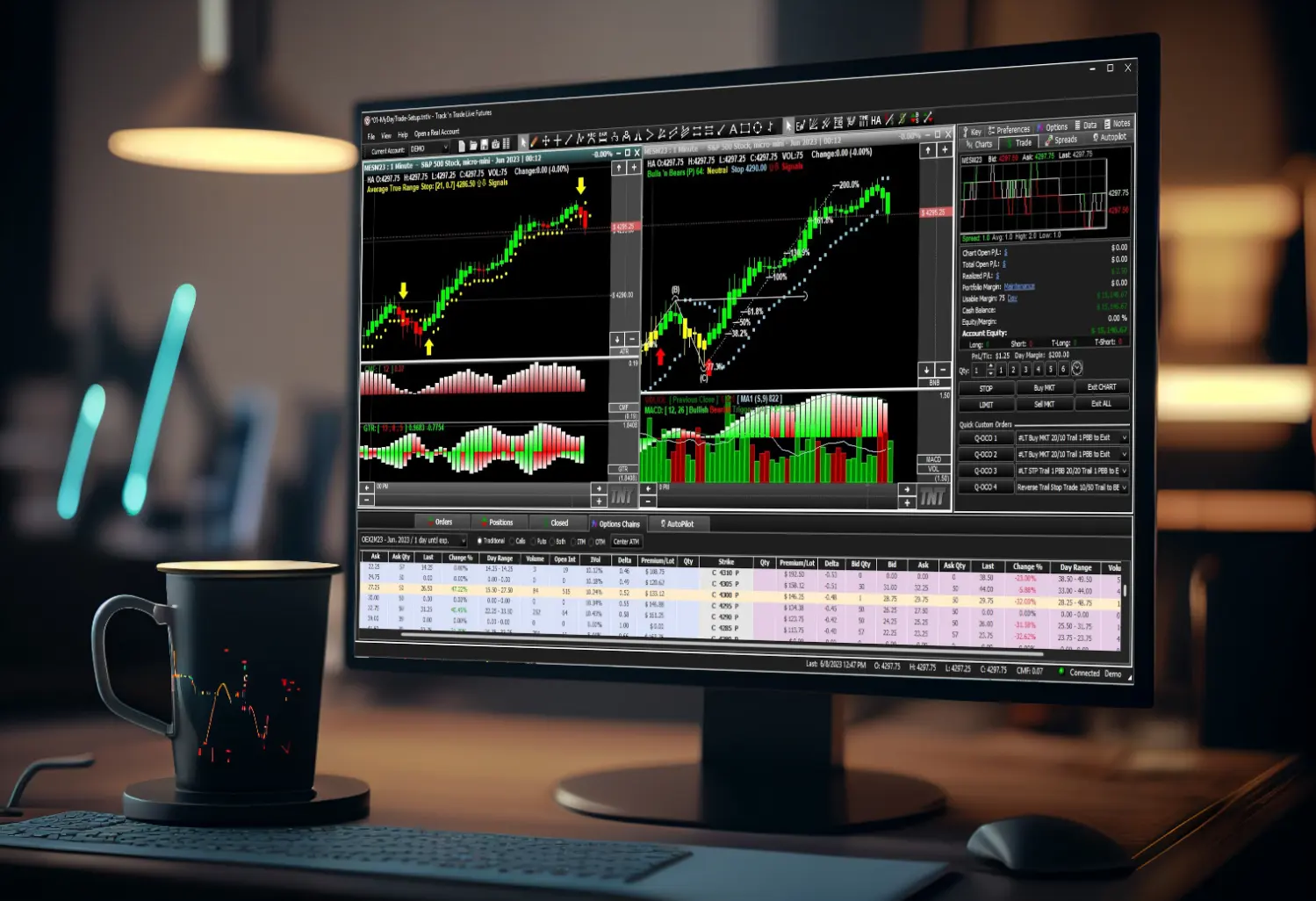
Full Access - No Obligation Trial
Dive into the action with your $50,000 simulated trading account included with each two week trial. Experience the full power and potential of our platform, risk-free! (No credit card required.)
Advanced Order Functionality
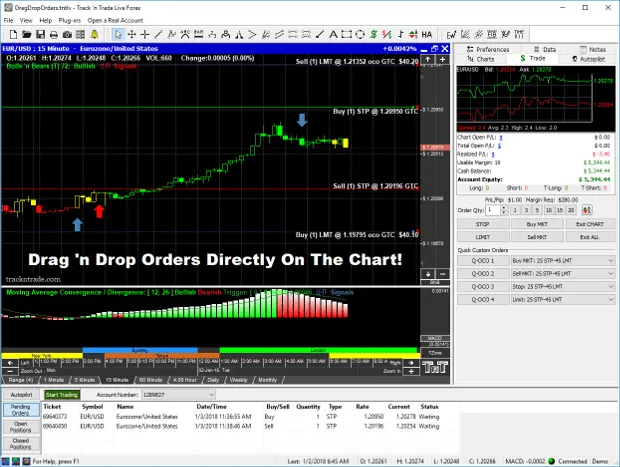
Unleash the power of seamless trading with Drag-n-Drop order placement with user customizable OCO & OTO orders buttons. Prepare for every market scenario with preset multileg option strategies. All these features designed for single click execution!
Proprietary Indicators and Auto-Trading
Experience the thrill of trading with our award-winning Bulls 'n Bears system, or command the markets effortlessly with our innovative Autopilot auto-trading system. Shape your personal trading strategy and watch it come to life, all with no programming required.
Free 14-Day Trial, No Credit Card Required
Start a Real Money Account With as Little as $500!
- Live Streaming Data
- On-Chart Drag 'n Drop Order Placement
- Trade The Worldwide Forex Market Live
- Fast Order Execution Buttons
- Market Entry, Exit, And One-Cancels-Other Orders With A Single Mouse Click
- Simple, Yet Powerful Graphical User Interface
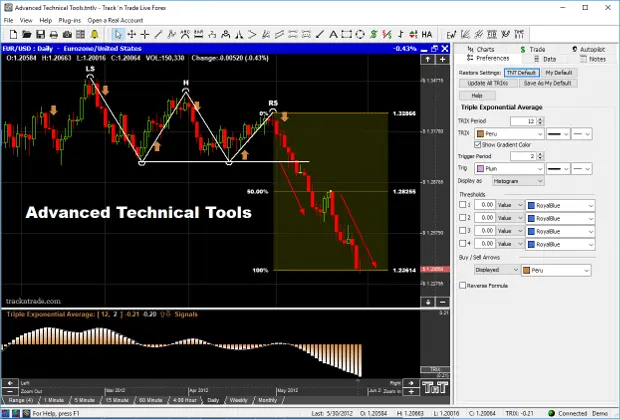
Fibonacci & Elliott Wave, Gann & Andrews Pitchfork
- Includes Fibonacci Tools like Time Zones, Fans, Arcs, Extensions and Retracements
- Identify Crucial Elliot Wave Patterns Manually and Automatically
- Measure Market Movements with Gann Fans and Andrews Pitchfork
- Educational Videos that help you to learn how to utilize these amazing tools
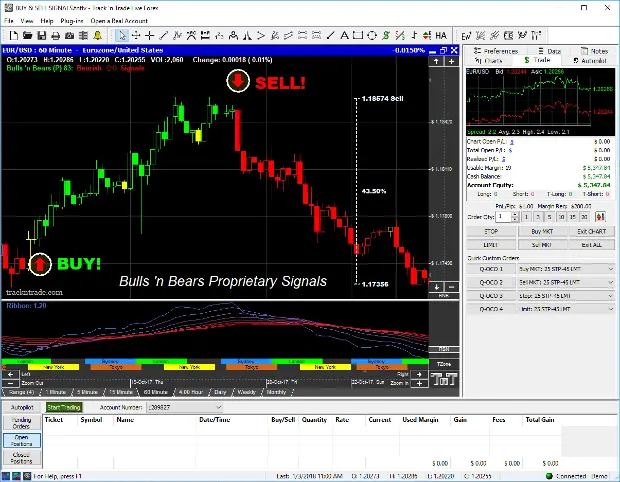
User-Definable Buy and Sell Signals
- User-Definable Up Arrows Indicate Buy, Down Arrows Indicate Sell, Simple As That
- Easily Customizable Settings For All Your Favorite Indicators
The Track 'n Trade Difference
Save all your Analysis from Day-to-Day
Save Your Charts and Drawn Analysis To Keep Your Progress. No More Starting Over Everyday With Online or Java Charts
Automated Futures Trading
Use your favorite indicators to build your own customizable strategy using the Autopilot Plug-in for Track 'n Trade LIVE
Risk/Reward & Tick (Dollar) Calculators
Calculate Potential Risk and Reward. Manage Your Risk Assessment For Any Trade. Always Know What A Move In The Software Is Worth
Customize the Software for your Needs
Every Indicator Is Completely Customizable. Personalize Your Charts With Colors, Lines, Styles, Indicator Formulas, and Much More...
Place Orders Directly Through Track 'n Trade
Drag 'n Drop, One Click Trading. Place LIVE Orders Directly Through Track 'n Trade
Support
With a wide variety of How-to support videos and Online Manual quickly find answers to your questions. Or call our support staff Located in the USA.
Please Review Your Cart Details
item(s)