The Ultimate Futures Trading Platform
Elevate Your trading with our proprietary indicators found nowhere else
Full Access - No Obligation Trial
Dive into the action with your $50,000 simulated trading account included with each two week trial. Experience the full power and potential of our platform, risk-free! (No credit card required.)
Advanced Order Functionality
Unleash the power of seamless trading with Drag-n-Drop order placement with user customizable OCO & OTO orders buttons. Prepare for every market scenario with preset multileg option strategies. All these features designed for single click execution!
Proprietary Indicators and Auto-Trading
Experience the thrill of trading with our award-winning Bulls 'n Bears system, or command the markets effortlessly with our innovative Autopilot auto-trading system. Shape your personal trading strategy and watch it come to life, all with no programming required.
14-Day Trial
No Credit Card Needed
Why Trade Futures?
Access a variety of trading advantages and diversify your portfolio with Futures.
- No “Pattern-Day-Trading” rules; trade as much and as often as you need.
- Increased tiered leverage; start small, leverage up with experience.
- No short sale restrictions, fees, interest, or hard-to-borrow availability concerns.
- No $25,000 minimum account balance requirements to day trade, like in stocks.
- Open your account with as little as $5,000 to start trading.
- Futures are traded primarily out of Chicago, while stocks are traded primarily out of New York.
Advanced Technical Analysis Chart Markup Tools


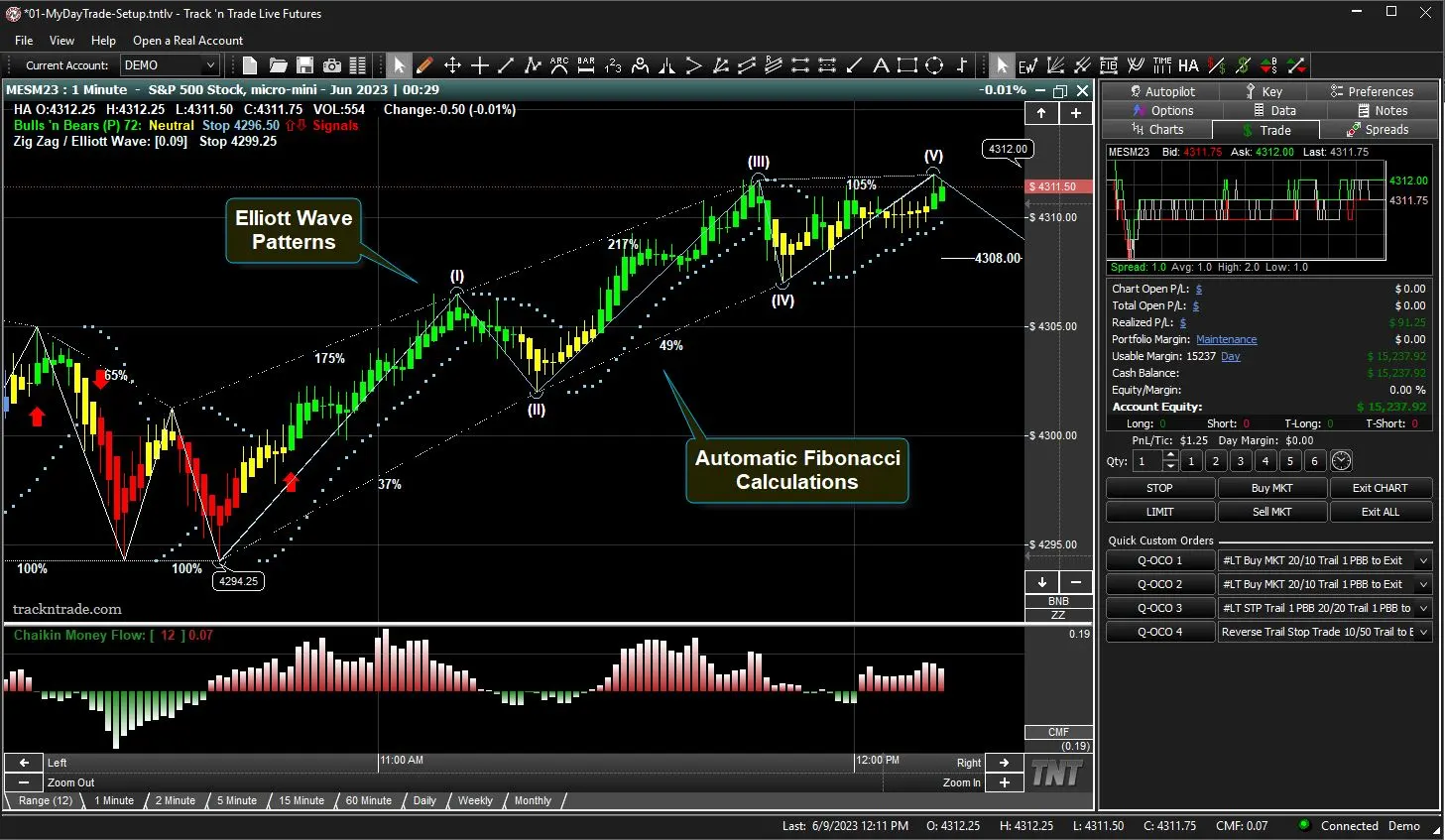
Empower Your Trading with Advanced Technical Analysis
Experience precision
Fibonacci & Elliott Wave Integration.
- Unleash the potential of Fibonacci with advanced tools including Time Zones, Fans Arcs, Extensions, and Retracements.
- Decipher the market's language by identifying crucial Elliot Wave patterns, both manually and automatically.
- Measure the heartbeat of the market with dynamic Gann Fans and Andrews Pitchfork.
- Elevate your trading skills with our educational videos, crafted to help you master these powerful analytical tools.
- Dive into technical analysis, where advanced trading strategies meet user-friendly technology. Experience Track 'n Trade – your ultimate guide to smarter trading.
Designed for the Visual Investor
Experience the Pulse of the Market
Real-Time Live Streaming Data.
- Standard and Customizable Time Frames (1min, 5min, 10min, daily, weekly, monthly etc.)
- Customizable Range Bar (each bar moves certain number of tics before new bar is generated)
- Real-time Monthly and Weekly Options Data
- Commodity Spreads Trading Capabilities
- On-Chart Drag 'n Drop Order Placement
- Live DOM (Depth of Market) Trading
- Fast Order Execution Buttons
- Market Entry, Exit, And OCO (One Cancels Other) Orders With A Single Mouse Click
- Simple Charts, Yet Powerful Graphical User Interface
Try Before You Buy
No Credit Card Needed
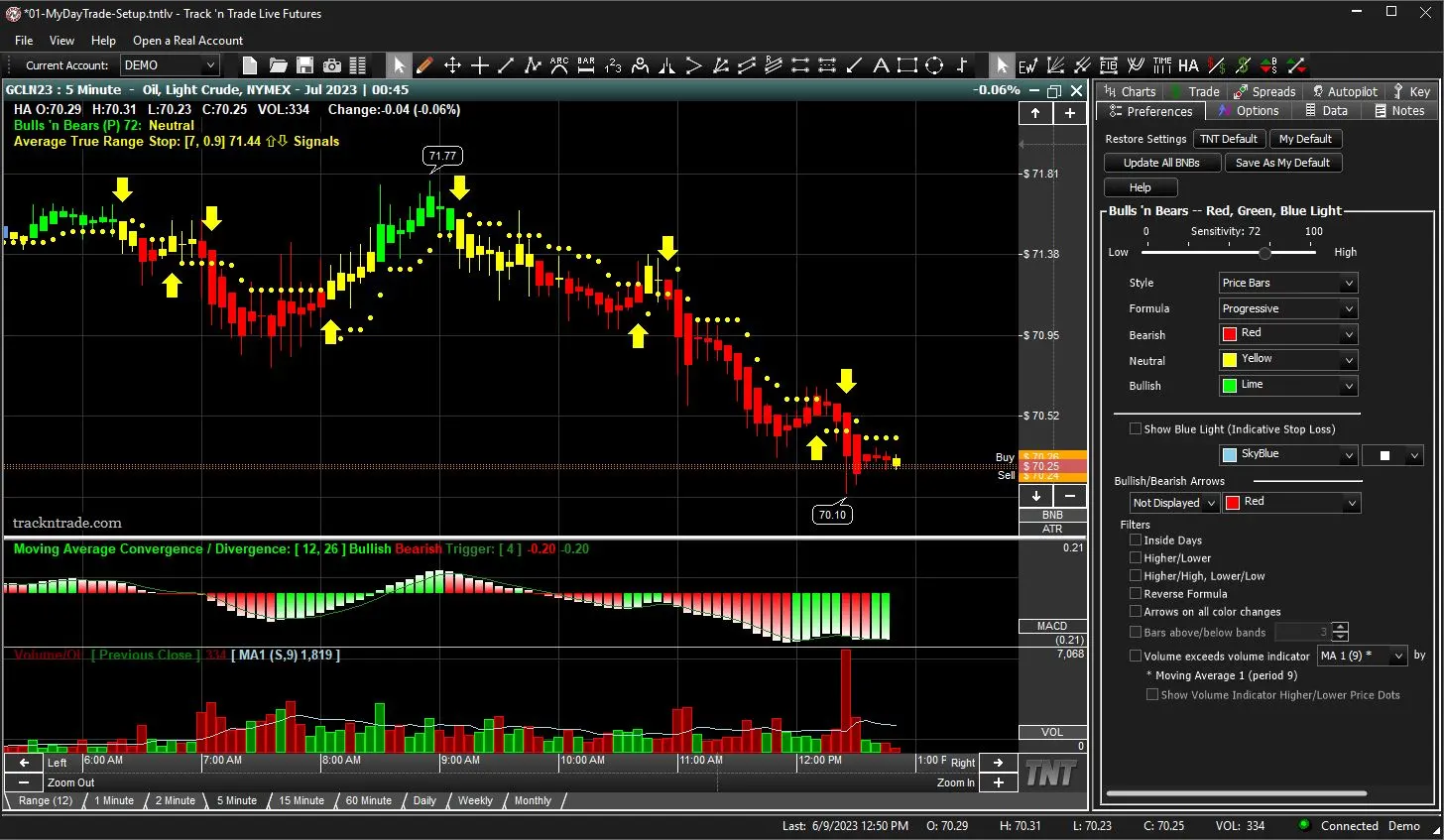
Customizable Automation Ready Systems and Indicators
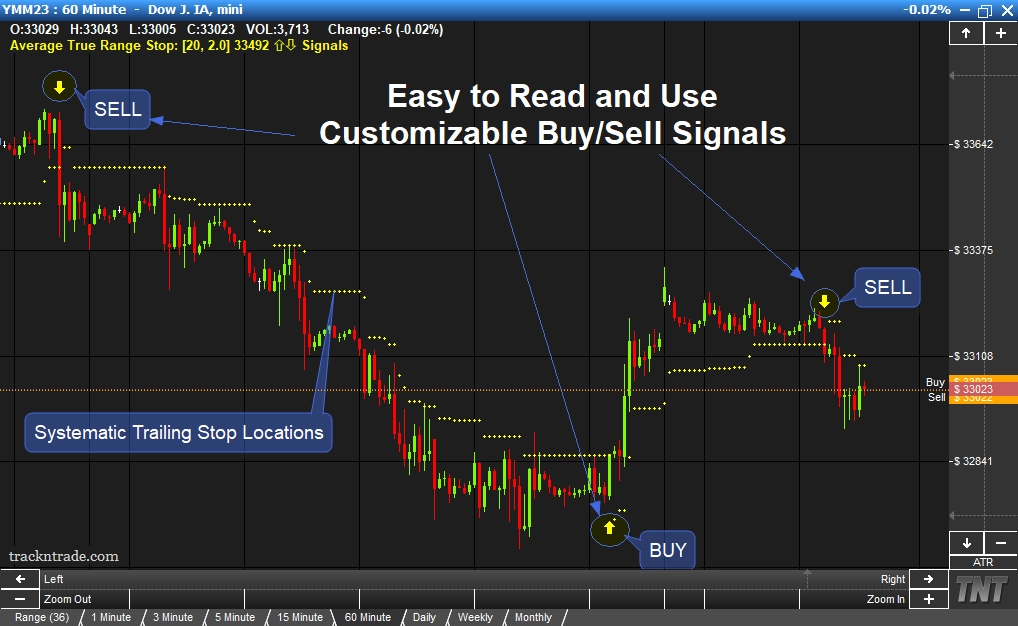
User-Definable Buy/Sell Systems and Indicators
Master Your Trades with Dozens of Customizable Buy/Sell Indicators
- Experience the freedom of personalized trading with our userdefinable up and down arrows - clear signals that indicate when to buy and when to sell. It's trading, simplified.
- Tailor Your Trading Toolbox. With our Track ‘n Trade, you're in command. Easily customize the settings for all your favorite indicators. Fine-tune your trading strategies to suit your style, and optimize your results.
- Navigate the world of trading with confidence, by harnessing the power of Track 'n Trade to elevate your trading.
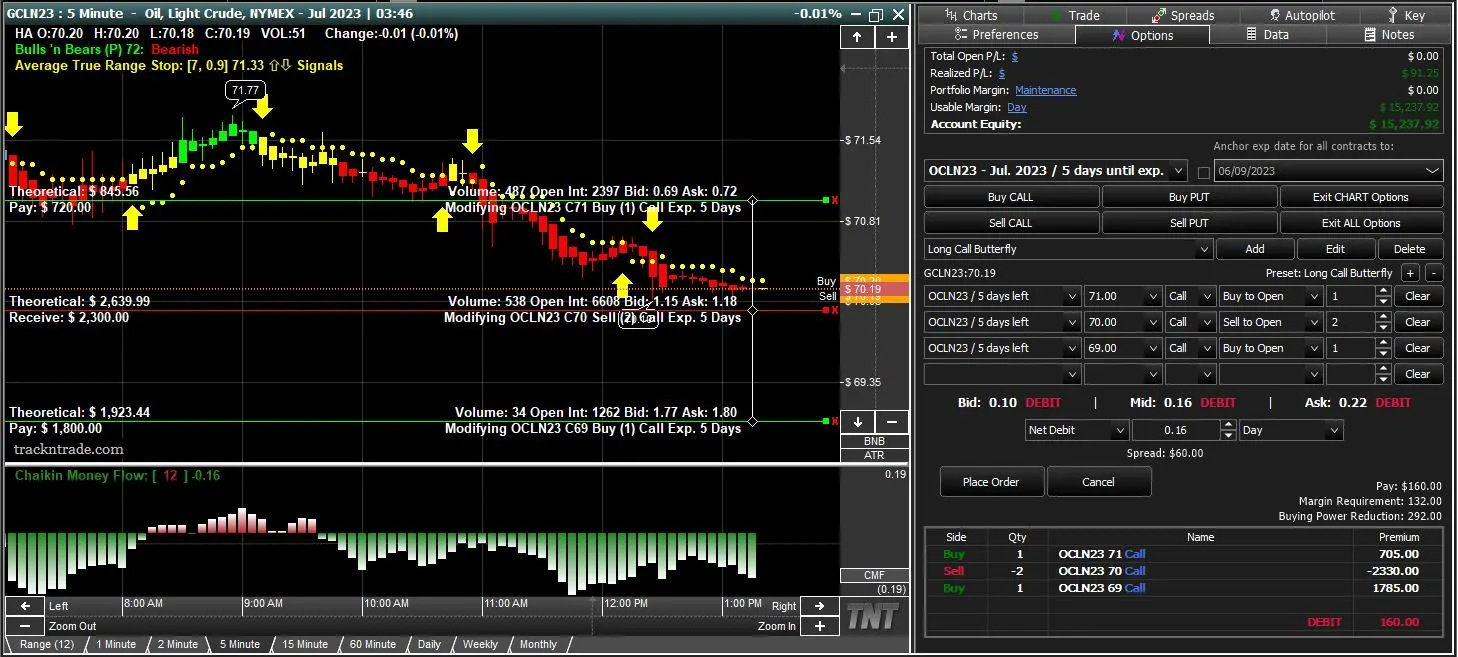
Revolutionary Drag ‘n Drop Live Options Trading
Options made simple; see why traders prefer options trading over stocks
Immerse yourself in the thrilling world of options trading today!
- Efficient Order Placement. Minimize clicks and maximize trading efficiency with our intuitive drag 'n drop order placement system.
- Precision at Its Best. Our platform utilizes the renowned Black & Scholes Valuation Model for calculating Theoretical Value, ensuring top-tier precision in options pricing.
- Simple or Complex, It's Your Call. Execute single-leg or multileg options with just a click. Define your trading parameters, and let Track 'n Trade execute your strategies.
- Personalize Your Trading. Craft your unique trading strategies with our custom multi-leg templates and unique Option Builder. Create your rules, and carve your path in the trading world. Stay Informed, Stay Ahead.
- Get an edge over the competition with our real-time streaming options data. Informed decision-making has never been easier or more efficient.
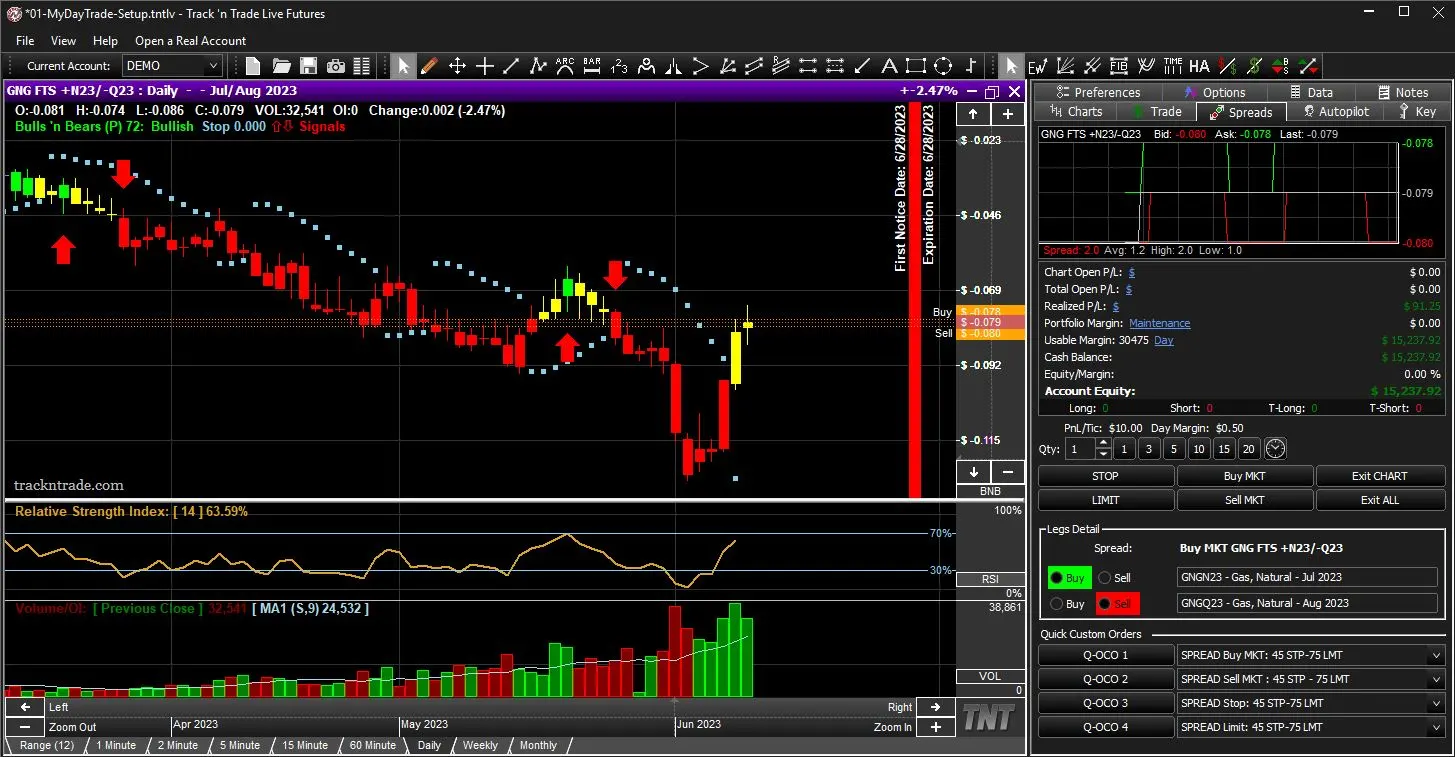
Now Trade Live Contract Spreads
Dive into the world of spread trading
make the most of a wide breadth of trading strategies.
- Calendar Spreads at Your Fingertips. Unleash your potential with Intra-Market trading. Take advantage of price discrepancies within the same market, with our calendar spreads.
- Expand Your Horizon with Inter-Market Spreads. Take your trading to a new level by exploiting price differentials between related commodities. With Track 'n Trade, you're not just limited to one market.
- Experience Seamless Onscreen Drag 'n Drop Execution of All Order Types, Including OCO & OTO: Capture Every Market Opportunity
"Without Question, Track 'n Trade is the most feature rich Trading Software on the market. For chartists, it is a
VISUAL PARADISE!"

- Michael Gibbons*
Timer Digest's TIMER OF THE YEAR
2002, 2007, 2008, & 2010
*Testimonials are not a guarantee of future success
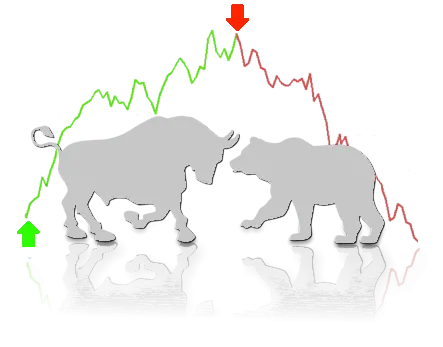
BULLS 'N BEARS
Ranked #1 Trading System
Stocks & Commodities Magazine Traders' Resources
*Testimonials are not a guarantee of future success

AWARD WINNING
Seven Times
Stocks & Commodities Magazine
*Testimonials are not a guarantee of future success
Ready To Get Track 'n Trade?
Choose an Options Below:
| Base | Deluxe | ||
|---|---|---|---|
|
Ongoing Service and Data |
$33 avg/mo $40 avg/mo |
$33 avg/mo $40 avg/mo |
$33 avg/mo $40 avg/mo |
 Track 'n Trade Live Futures Platform |
|||
 Candlestick Auto-Recognition |
|||
 Commitment of Traders |
|||
 Seasonals |
|||
 Autopilot Auto-Trading |
|||
 Bulls 'n Bears Trading System |
|||
| Lifetime Software License (One-Time Purchase) |
$297 | $1,277 | $1,597 |
|
Savings vs Individual Prices |
14% Savings |
36% Savings |
|
| Add To Cart Add To Cart
Total $695 Total $417 |
Add To Cart Add To Cart
Total $1,675 Total $1,397 |
Add To Cart Add To Cart
Total $1,995 Total $1,717 |
The Track 'n Trade Difference
Visual Order Placement
Effortlessly Drag 'n Drop your orders and see them visually displayed directly on the charts
Automated Futures Trading
Use your favorite indicators to build your own customizable strategy using the Autopilot Plug-in for Track 'n Trade LIVE
Risk/Reward & Tick (Dollar) Calculators
Calculate Potential Risk and Reward. Manage Your Risk Assessment For Any Trade. Always Know What A Move In The Software Is Worth
Save all your Analysis from Day-to-Day
Save Your Charts and Drawn Analysis To Keep Your Progress. No More Starting Over Everyday With Online or Java Charts
Customize the Software for your Needs
Every Indicator Is Completely Customizable. Personalize Your Charts With Colors, Lines, Styles, Indicator Formulas, and Much More...
Support
With a wide variety of How-to support videos and Online Manual quickly find answers to your questions. Or call our support staff Located in the USA.
Trading Account & Software Service Details
*Must open and fund a real-money trading account (minimum initial funding $500)
- Tick-by-tick LIVE streaming Futures data (non-delayed)
- LIVE Options data
- Active contract historical data for all live commodity contracts
- Ongoing software updates
- Phone Technical support & access to our video education center
Please Review Your Cart Details
item(s)